
To get a faster WordPress site, you need to focus on four things that really move the needle: picking the right hosting, setting up smart caching, optimizing front-end stuff like images, and doing a serious cleanup of your plugins and themes. These are the foundational fixes that tackle the most common speed traps and give you the biggest wins right out of the gate.
Why Website Speed Is Your Most Critical Metric

Let's be blunt: a slow WordPress site is far more than a minor annoyance. It's a silent conversion killer and an SEO anchor, actively driving away potential customers and telling Google that your user experience is simply not up to par. Every single second of load time eats away at your revenue and your search rankings.
Here's a number that always gets people's attention: a one-second delay in page load time can tank your conversions by 7%. If you're running an e-commerce store that brings in $100,000 a day, that single second costs you over $2.5 million a year in lost sales. This isn't just a technical glitch; it's a massive business problem.
The True Cost of a Slow Site
A sluggish site doesn’t just frustrate people—it creates real, tangible problems for your business. These issues pile up, creating a vicious cycle of poor performance that gets harder and harder to escape.
- Sky-High Bounce Rates: Today's users have zero patience for a loading spinner. When a page's load time goes from just one to three seconds, the chance of a user bouncing skyrockets by 32%.
- Plummeting Search Rankings: Google has been very clear that page speed is a direct ranking factor for both desktop and mobile. A slow site makes climbing the search results for important keywords nearly impossible, choking off your organic traffic.
- A Damaged Brand Reputation: Your website is often the first handshake with a new customer. A slow, clunky experience immediately signals a lack of professionalism and care.
A fast, responsive website isn't a "nice-to-have" feature; it's the bedrock of a good user experience and a core driver of success online. It directly shapes how people see your brand and whether they stick around or head straight to a competitor.
Creating Your Performance Roadmap
Think of this guide as your battle plan for clawing back that lost performance. We’re going to skip the overly technical fluff and concentrate on the pillars that make the biggest difference for your WordPress site's speed. Understanding why responsive web design matters for SEO and performance is a key part of building a stronger online presence.
We'll walk through a prioritized action plan, covering:
- Your Hosting Foundation: Why your server is the single most important factor.
- Smart Caching Strategies: How to serve up your content almost instantly.
- Front-End Optimizations: The real-world techniques for faster visual loading.
- Essential Site Hygiene: The ongoing maintenance that prevents your site from slowing down over time.
By the time you're done here, you won’t just have a random list of tips—you’ll have a clear, step-by-step strategy to turn your site’s speed into a genuine competitive edge.
1. Find Out Where You Stand: Testing and Baselining
Before you start tweaking plugins or compressing images, you need to know your starting point. Jumping into optimizations without a baseline is just guesswork. You could spend a whole weekend optimizing your images only to find out the real problem was a slow server response time all along.
Think of it like a doctor's visit. You get a diagnosis before you get a prescription. Running a few simple tests gives you that diagnosis, pointing you directly to the things that will actually make a difference. This first step is non-negotiable if you want to see real, measurable improvements.
Picking the Right Tools for the Job
To get a complete picture of your site's performance, you'll need to use a couple of different tools. Each one measures things a little differently and offers unique insights, so relying on just one can be misleading.
My go-to combination for a solid diagnosis is Google PageSpeed Insights and GTmetrix.
- Google PageSpeed Insights: This is essential. It tells you exactly how Google sees your site and focuses heavily on the Core Web Vitals, which are known ranking factors. You can't ignore what Google thinks.
- GTmetrix: I love GTmetrix for its detailed waterfall chart. This visual breakdown shows you precisely how every single file on your page loads, making it incredibly easy to spot that one rogue script or massive image file that's slowing everything down.
When you run your tests, consistency is key. Always test from the same server location (pick one closest to where most of your visitors are) and run the test three or four times to get a stable average. One-off tests can be flukes.
Don't get hung up on chasing a perfect "100" score. The real goal isn't a vanity metric; it's improving the specific numbers that impact how a real person experiences your website loading.
What Metrics Actually Matter?
Speed reports can look like a wall of confusing acronyms. Don't get overwhelmed. You only need to focus on a few key metrics to understand the story of your site's speed.
Here are the big three to start with:
- Largest Contentful Paint (LCP): This is how long it takes for the main piece of content on your page (usually a big hero image or a headline) to load. Anything over 2.5 seconds feels sluggish to a real visitor and should be your top priority. A poor LCP often points to a huge, unoptimized image or a slow server.
- Time to First Byte (TTFB): This is pure server speed. It measures how long your browser has to wait before the server even starts sending back information. A TTFB over 600 milliseconds is a major red flag that points directly to an issue with your hosting, your database, or a lack of server-level caching.
- Total Page Size: Simply put, this is how "heavy" your page is. All your images, scripts, and fonts add up. A good target to aim for is under 2 MB. If your page is much larger, it's going to struggle, especially for users on slower mobile connections.
Understanding these numbers turns the vague goal of "make my site faster" into a clear, actionable plan. A high TTFB tells you to look at your server first. A slow LCP points you toward your on-page elements, like images. This is how you stop guessing and start fixing.
Your Foundation: Fast Hosting And Smart Caching
Once you have your performance benchmarks, it's time to tackle the two things that deliver the biggest speed improvements right away: your hosting and your caching.
Think of these as the engine and the turbocharger for your WordPress site. Getting this foundation right can solve a massive chunk of your speed problems before you even think about optimizing an image or a line of code.
Lots of people start out with the cheapest shared hosting plan they can find—and that's totally fine at the beginning. But as your site grows, that budget hosting quickly becomes the single biggest bottleneck holding you back.
Why Your Hosting Choice Is Everything
Shared hosting is like living in a crowded apartment building with paper-thin walls. You're sharing server resources—CPU, RAM, bandwidth—with dozens, sometimes hundreds, of other websites. If one of your "neighbors" suddenly goes viral, your site can slow to a crawl. You have no control, but you definitely feel the pain.
This is where a move to Managed WordPress Hosting completely changes the game. It’s an environment built from the ground up specifically for WordPress.
- Dedicated Resources: You aren't fighting other sites for processing power. The server's resources are tuned for your site, which means consistent performance even when you get a sudden rush of visitors.
- Optimized Server Stack: These hosts use modern tech like the latest PHP versions, faster databases like MariaDB, and powerful web servers (like NGINX or LiteSpeed) all configured to make WordPress fly.
- Expert Support: Their support teams are WordPress specialists. When you have a performance problem, they know exactly where to look, saving you hours of guesswork and frustration.
Honestly, upgrading from a basic shared plan to quality managed hosting is often the most effective speed boost you can make. It solves deep, server-level issues that no plugin can ever fully fix.
Demystifying Caching: The Secret To Instant Pages
With your hosting sorted, caching is your next big win. So, what exactly is it?
Imagine you’re at a busy coffee shop. The first customer of the day orders a complicated latte. The barista has to grind the beans, steam the milk, and pull the espresso shot from scratch. It takes a few minutes. But if the next ten customers all order that same latte, the barista can start prepping parts in advance, serving them almost instantly.
Caching does the same thing for your website. Without it, every time someone visits a page, WordPress has to wake up, talk to the database, piece the page together, and then send it to the browser. This entire process repeats for every single visitor. It's incredibly inefficient.
A caching plugin acts like that smart barista. It takes a "snapshot" of the final, fully-built page (a static HTML file) and serves that directly to the next visitors. This completely skips all the slow database lookups and PHP processing, making the page load dramatically faster.
A solid caching strategy isn't just a minor tweak—it can slash your WordPress page load times by an incredible 40-60%. This has a direct, positive impact on your Time to First Byte (TTFB) and keeps your visitors happy.
This simple diagram shows the process of testing your site's speed, which is a great way to see the "before and after" results of turning on a good caching plugin.
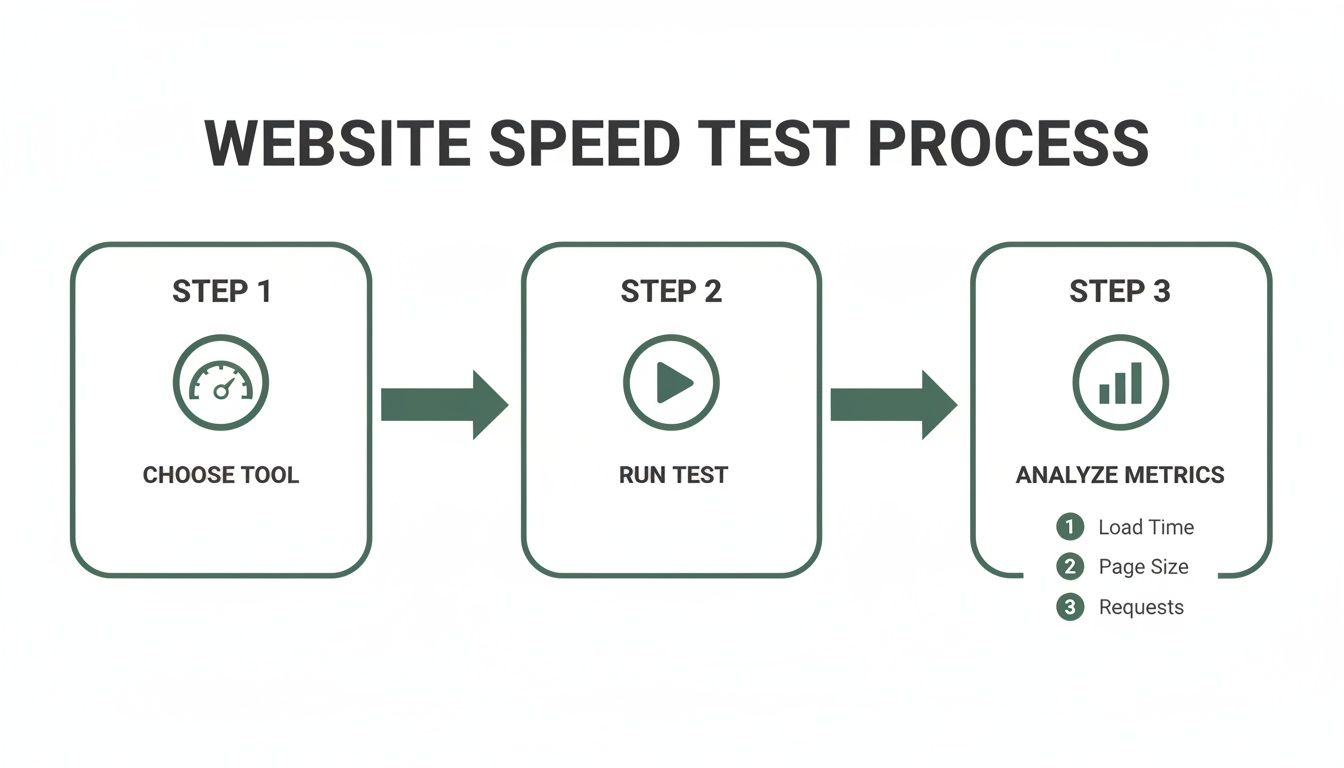
Running a test, enabling caching, and then running another test is the best way to confirm you're getting the performance boost you expect.
Putting Caching Into Action With The Right Plugins
Many of the best Managed WordPress hosts provide server-level caching. This is the fastest type because it’s handled by the server itself, even before WordPress gets involved. If your host offers it, that’s usually all you need.
But if you do need a plugin—or want more control—a few stand out from the crowd. This is especially true if your site has a lot of heavy media; if so, you might find some useful tips in our guide on how to build a videography website that attracts clients.
Here’s a quick rundown of my top recommendations to help you pick the best tool for the job.
Choosing Your Caching Solution
| Feature | WP Rocket (Premium) | LiteSpeed Cache (Free, Server-Dependent) | W3 Total Cache (Free/Premium) |
|---|---|---|---|
| Best For | Users who want powerful results with minimal configuration. It's the "set it and forget it" champion. | Sites hosted on a LiteSpeed web server. This combo is unbeatable for performance. | Developers and advanced users who want granular control over every aspect of caching. |
| Ease of Use | Excellent. The user interface is clean, and most critical optimizations are enabled by default. | Good, but requires a LiteSpeed server to unlock its best features. Can be complex otherwise. | Fair. Has a steep learning curve due to its sheer number of settings and options. |
| Key Features | Page caching, file minification (CSS/JS), lazy loading, database optimization, CDN integration. | Server-level page caching, image optimization (QUIC.cloud), critical CSS generation. | Page/object/database caching, minification, CDN support, fragment caching. |
| Price | Starts at $59/year for one site. | Free. (Requires a LiteSpeed server, which is common with many quality hosts). | Free core plugin; premium features available in a Pro version. |
For most people, WP Rocket is the way to go. It's the gold standard for a reason—it just works. It handles about 80% of web performance best practices right out of the box. For those on a host using a LiteSpeed web server, the free LiteSpeed Cache plugin is a no-brainer. It delivers premium-level performance by communicating directly with the server.
Whichever plugin you choose, make sure these key features are enabled:
- Page Caching: This is the main event—the function that creates the static HTML snapshots of your pages.
- Browser Caching: This tells a visitor's browser to save local copies of files like your logo, CSS, and JavaScript. When they click to a new page, those files are already there, making navigation feel instant.
- GZIP Compression: This shrinks your files before they travel from your server to the browser, which drastically cuts down on transfer time.
By pairing a fast hosting environment with a smart caching strategy, you're knocking out the two biggest culprits behind a slow WordPress site. This groundwork is crucial and makes all of our next optimizations even more effective.
Optimizing The Visual Experience On The Front End
Alright, now that we’ve shored up your server and caching, it’s time to tackle the front end—everything your visitors actually see and interact with. This is where perceived performance really comes into play. You can have the fastest server in the world, but if your site is bogged down with huge images and messy code, it's still going to feel slow.
The biggest culprit I see on most WordPress sites? Images. Hands down. They're obviously essential for a good-looking site, but they are incredibly heavy if you don't handle them properly. In fact, it’s not uncommon for unoptimized images to make up 50-70% of a page's total weight. That's more than enough to send a potential customer packing before they even start scrolling.
Fixing this is one of the quickest wins you can get. The results are immediate and something your users will notice right away.
Master Your Media Image Optimization
Getting your images right isn't just about making them smaller. It’s a three-step dance: resizing, compressing, and choosing the right format. Nail these three, and you're golden.
First, let's clear up the difference between image dimensions and file size. Say you upload a gorgeous 4000×3000 pixel photo from your DSLR. Even if you display it in a little 800×600 box on your blog, the user's browser has to download the entire original file. That's a massive waste of bandwidth.
So, rule number one: always resize your images to the maximum size they’ll be displayed before uploading them. If your main content area is 900 pixels wide, there's zero reason to upload an image that's 3000 pixels wide.
Next up is compression. This is the art of shrinking the file size without making the image look like a pixelated mess. My advice? Don't do this manually. Get a plugin like ShortPixel or Imagify to do the heavy lifting. These tools run in the background, automatically compressing new uploads and even offering to go back and fix your entire existing media library.
A common mistake is thinking WordPress has this covered. While it does create different image sizes, it doesn't perform the kind of smart, aggressive compression that a dedicated plugin can. It’s a good start, but not a complete solution.
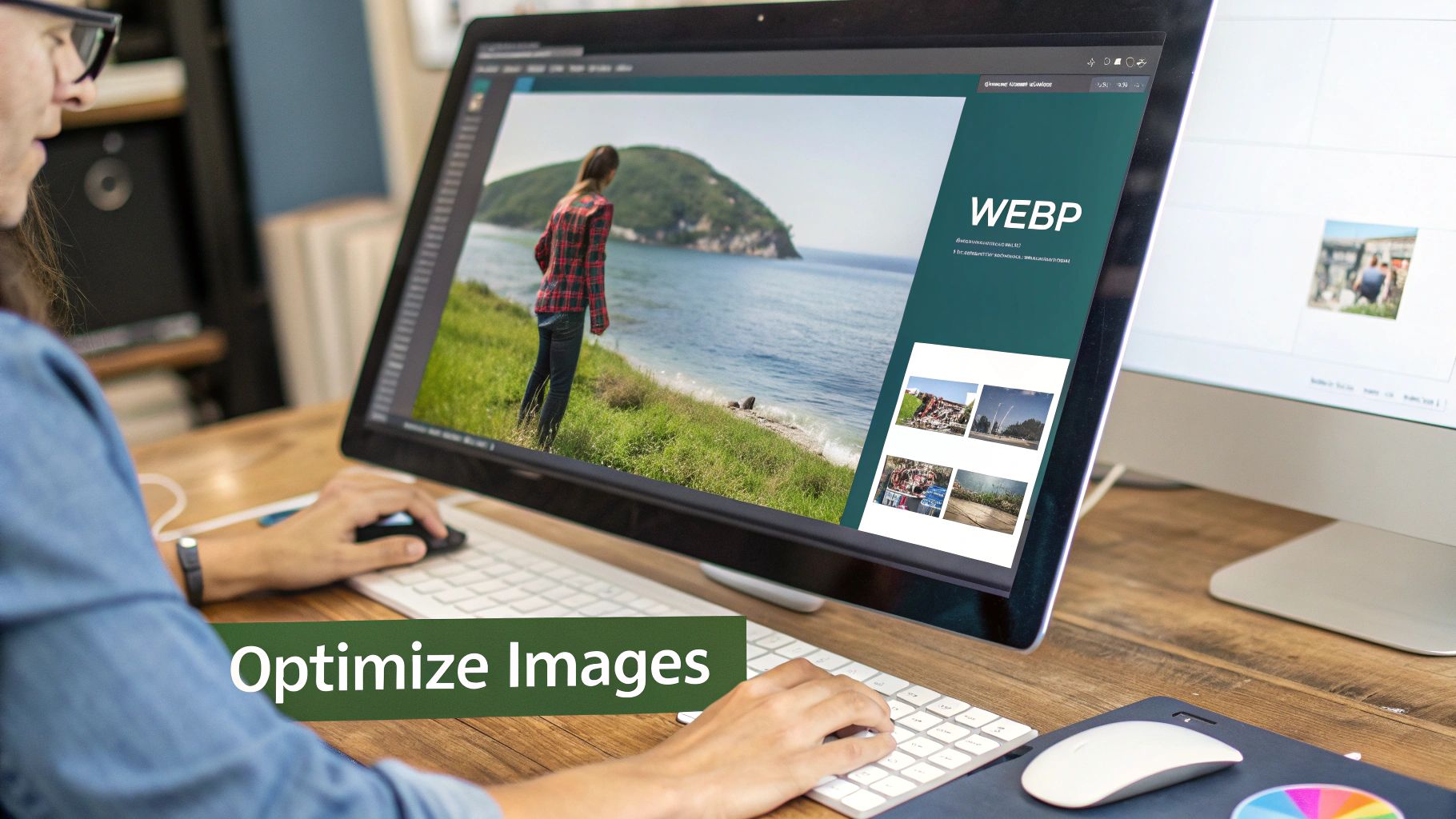
Finally, you need to be using modern image formats. JPGs and PNGs have served us well, but WebP is the undisputed champion for the web today. WebP files are often 25-35% smaller than their older counterparts with no visible difference in quality. Most good optimization plugins can automatically convert your images to WebP and serve them to browsers that support it.
Implement Lazy Loading For Instant Gratification
Even with perfectly optimized images, a page with 20 photos still has to load all 20 of them. This is where lazy loading completely changes the game for perceived speed.
Instead of loading every single image on the page right away, lazy loading waits to load an image until it’s just about to scroll into view. This makes the initial page load feel dramatically faster because the browser only has to worry about the content "above the fold."
Here's why it's so effective:
- Faster Initial Page Load: This directly improves key metrics like Largest Contentful Paint (LCP) by focusing on what the user sees first.
- Reduced Bandwidth Usage: It saves data, which is a big deal for users on mobile connections. They only download what they actually see.
- Improved User Experience: The page becomes usable much faster, cutting down on frustration and lowering bounce rates.
The best part? You probably don't need a new plugin for this. Since WordPress 5.5, basic image lazy loading is built right in. That said, premium caching plugins like WP Rocket often provide a more powerful version that also lazy loads videos and iframes, giving you an even bigger performance boost. Getting these front-end details right is a core part of the responsive web design best practices for 2024.
Minify And Combine Your Code
Your theme and plugins all load their own CSS and JavaScript files to make your site look and work the way it does. Every single one of those files is another request the browser has to make to your server. More requests mean more waiting.
Minification is the process of stripping out all the junk from your code files—things like comments, white space, and line breaks—that humans need but browsers don't. This makes the files smaller and quicker to download.
Many tools can also combine these tiny files into just a few larger ones. This cuts down on the total number of HTTP requests, which is especially helpful for older servers not running on the modern HTTP/2 protocol.
Here’s a quick breakdown:
| Optimization | What It Does | Primary Benefit |
|---|---|---|
| Minification | Removes unnecessary characters from CSS and JavaScript files. | Reduces the individual file sizes for faster downloads. |
| Combination | Merges multiple CSS or JavaScript files into a single file. | Reduces the total number of HTTP requests the browser must make. |
Once again, a good caching plugin is your best tool here. WP Rocket and others have simple checkboxes to turn on CSS and JavaScript minification. For most sites, that's all it takes. Just be sure to check your site carefully after enabling combination, as it can sometimes cause JavaScript conflicts. If something breaks, you can usually find a setting to exclude the specific script that's causing the problem.
Rethink Your Reliance On Web Fonts
I love custom typography, but web fonts come with a performance price tag. Each font family and weight you add from a service like Google Fonts is another external request that slows things down.
If raw speed is your number one goal, consider using a system font stack. This simple CSS trick tells the browser to just use the default font that's already on the user's computer (like Arial, Helvetica, or Georgia). The benefit? Zero extra requests, and the text appears instantly.
If you absolutely must use a custom font, be disciplined about it:
- Limit your choices: Try to stick to one or two font families, max.
- Be selective with weights: Only load the font weights you're actually using (e.g., regular 400 and bold 700). Don't just load all nine weights from thin to black.
- Host fonts locally: Sometimes, downloading the font files and serving them from your own server can be faster than calling out to Google's.
By focusing on these front-end elements, you’re directly improving the experience your user actually has. You're making the site not just technically faster, but feel faster, which is what really matters.
A Practical WordPress Housekeeping Routine
A fast WordPress site isn't a "set it and forget it" project. It's more like a garden; without regular weeding, even the most beautifully optimized site will get overgrown with performance-killing clutter. Think of this as your digital housekeeping checklist—a simple routine to keep things running smoothly.
This is all about being proactive. By regularly trimming the fat, you stop performance problems before they even start. And the biggest source of bloat? You guessed it: plugins.
Conduct A Thorough Plugin Audit
Plugins are what make WordPress so powerful, but they're also the number one cause of slowdowns. The hard truth is that not all plugins are built with performance in mind. Some are lean and efficient, while others are resource hogs that can add precious seconds to your load time.
So, how do you find the culprits? You have to play detective. A fantastic free tool for this is Query Monitor. Once you install it, a detailed diagnostic menu appears in your admin bar, showing you exactly how many database queries each plugin is making and how long they take.
Pop it on your site, then browse a few different pages on the front end. Keep an eye out for plugins that are consistently slow or make a huge number of requests. When you find an offender, ask yourself two simple questions:
- Is this plugin absolutely essential? Could you achieve the same result with a snippet of code or a feature that's already in another, more efficient plugin?
- Is there a lighter alternative? A quick search for "[plugin name] lightweight alternative" often turns up some fantastic, better-coded options.
Getting ruthless about deactivating and deleting plugins you don't truly need is one of the quickest wins for a faster WordPress site.
Re-Evaluate Your Theme And Page Builder
Just like plugins, your theme and page builder have a massive impact on performance. Many popular themes are "multipurpose," which sounds great, but it often means they're stuffed with dozens of features and scripts you'll never use, all of which slow your site down.
Page builders like Elementor or Divi are incredibly powerful for design, but that flexibility often comes at a cost. They tend to wrap your content in extra code and load additional CSS and JavaScript files, which increases the overall weight of your pages.
If your site speed reports consistently flag bloated code or an excessive number of DOM elements, your theme or page builder is a prime suspect. Switching to a lightweight theme framework like GeneratePress or Kadence can give you a lightning-fast foundation without sacrificing design control.
This doesn't mean you have to ditch your page builder, but you do need to be mindful. Always use its built-in performance settings, disable any widgets you aren't using, and keep your page layouts as clean and simple as possible to minimize code bloat.
Clean Up Your WordPress Database
Over time, your WordPress database collects a ton of junk. I'm talking about:
- Post Revisions: Every time you save a draft, WordPress stores a copy. A single blog post can easily have 20+ revisions cluttering things up.
- Spam Comments: Even if they're in the spam folder, they're still taking up space in your database tables.
- Transients: These are temporary bits of cached data that sometimes get stuck and never clear themselves out.
- Orphaned Data: Little bits of information left behind by plugins and themes you deleted ages ago.
All this clutter makes your database sluggish. Your server has to sift through more junk to find what it needs, slowing down everything from the admin dashboard to the front end of your site.
Luckily, the fix is easy. A plugin like WP-Optimize can safely vacuum up all this digital debris with just a couple of clicks. I recommend running it once a month to keep your database lean and mean.
Update To The Latest PHP Version
Finally, let's talk about one of the most powerful and most overlooked performance tweaks out there: your PHP version. PHP is the programming language that runs WordPress, and each new version comes with massive improvements in speed and security.
Running an old version of PHP is like trying to run modern software on a ten-year-old computer. It might work, but it's going to be painfully slow. In fact, studies show that upgrading from PHP 7.4 to PHP 8.x can allow a site to handle up to 50% more requests per second.
This is a huge, immediate speed boost. You can almost always update your PHP version right from your hosting control panel (like cPanel or Plesk). Just look for an option like "PHP Version Manager" or "Select PHP Version," choose the latest stable release (anything 8.1 or higher is great), and hit save. If you can't find it, your host's support team can do it for you in seconds.
Your WordPress Speed Questions, Answered
Alright, you've been working hard. You've tackled caching, optimized your images, and cleaned up your plugins. But now, the practical, day-to-day questions start popping up. What happens next? How do you maintain this speed?
This is where the real, long-term strategy comes into play. Let's get into those common questions I hear all the time from clients and clear up any lingering confusion.
How Often Should I Really Be Testing My Site Speed?
It's tempting to only run a speed test when your site feels slow, but that’s like only going to the doctor when you’re already sick. A much smarter approach is to be proactive.
Here’s a simple, effective rhythm I recommend:
- After any significant change. This is non-negotiable. Installed a new plugin? Switched themes? Added a fancy new JavaScript-powered feature? Run a test immediately. This is the only way to know if that change just torpedoed your performance.
- At least once a month. A regular monthly check-in is great for catching "performance creep"—the slow, gradual degradation that happens over time. It keeps you honest.
- Before a big traffic event. Launching a new product or running a big promotion? Test your site before the traffic hits. You want to be sure it can handle the load when real customers are trying to give you money.
Think of speed testing less as a one-off fix and more as a vital health metric for your website.
Is a CDN Really Necessary for a Local Business?
This is a great question, and the answer isn't a simple yes or no. A Content Delivery Network (CDN) is a game-changer for sites with a national or global audience, as it serves your images and files from servers physically closer to the visitor.
But what if you're a coffee shop in San Diego, and 95% of your customers are also in Southern California? The pure speed benefit of a CDN is definitely less dramatic, since your main server is already close by.
But here’s the inside scoop: speed isn't the only reason to use a CDN. Many top-tier CDNs, like Cloudflare, bundle in incredible security features like DDoS protection and a Web Application Firewall (WAF). They also help absorb unexpected traffic spikes, keeping your site online during a local news feature.
So, for a local business, a CDN might be less about raw page load time and more about rock-solid stability and security. It's often a very worthwhile investment for peace of mind alone.
What's the Real Risk of Deleting Old Plugins?
The fear is understandable: "What if I delete this old, deactivated plugin and the whole site breaks?" It’s a valid concern, but I can tell you from experience that the risk of keeping unused plugins is far, far greater. They are a primary target for hackers and a leading cause of database bloat.
To do this the right way and sleep well at night, just follow this simple, safe process:
- Always take a full backup first. Before you touch anything, get a complete backup of your files and database. This is your undo button.
- Deactivate, don't delete (yet). Start by deactivating the plugin. Then, spend some time clicking through your website. Check your contact forms, your checkout process, and any key pages. Make sure everything still works.
- Give it a week. Let the plugin sit deactivated for a few days, maybe even a full week. If nothing has gone wrong and no one is complaining, you can be pretty confident it wasn't doing anything critical.
- Now you can delete it. Head back to your dashboard and delete the plugin with confidence.
This methodical approach removes all the guesswork and ensures you're trimming the fat without cutting into bone.
Can My Page Builder Actually Be Slowing My Site Down?
Yes. One hundred percent, yes. Page builders like Elementor, Divi, and Beaver Builder are fantastic for creating beautiful, complex layouts without touching a line of code. But that convenience has a price, and that price is often performance.
These tools generate a lot more code and load extra stylesheets and scripts to make all that drag-and-drop magic happen. A site built on a lean theme like GeneratePress using the native WordPress block editor will almost always outperform a site where a page builder has been used to construct every single header, footer, and blog post.
The key is to find the right balance. Use the power of your page builder for your high-stakes landing pages where design is everything. But for your standard blog posts and simple pages? Stick with the block editor. It’s a smart compromise that gives you design flexibility where it counts without bogging down your entire site.
At Danny Avila, we specialize in building WordPress websites that are not only beautiful but are also lean, fast, and engineered to convert. A high-performance site is the engine of any successful digital marketing strategy.
Explore our Web Design services and see how we can help your San Diego business grow.