SyncSnap Audio
Multicam audio sync for Mac. Free on the Mac App Store.
Drop in your camera and audio files, click Sync, and export a timeline to Premiere, Final Cut, or Resolve. Everything runs on your Mac. No account, no upload, no internet required.
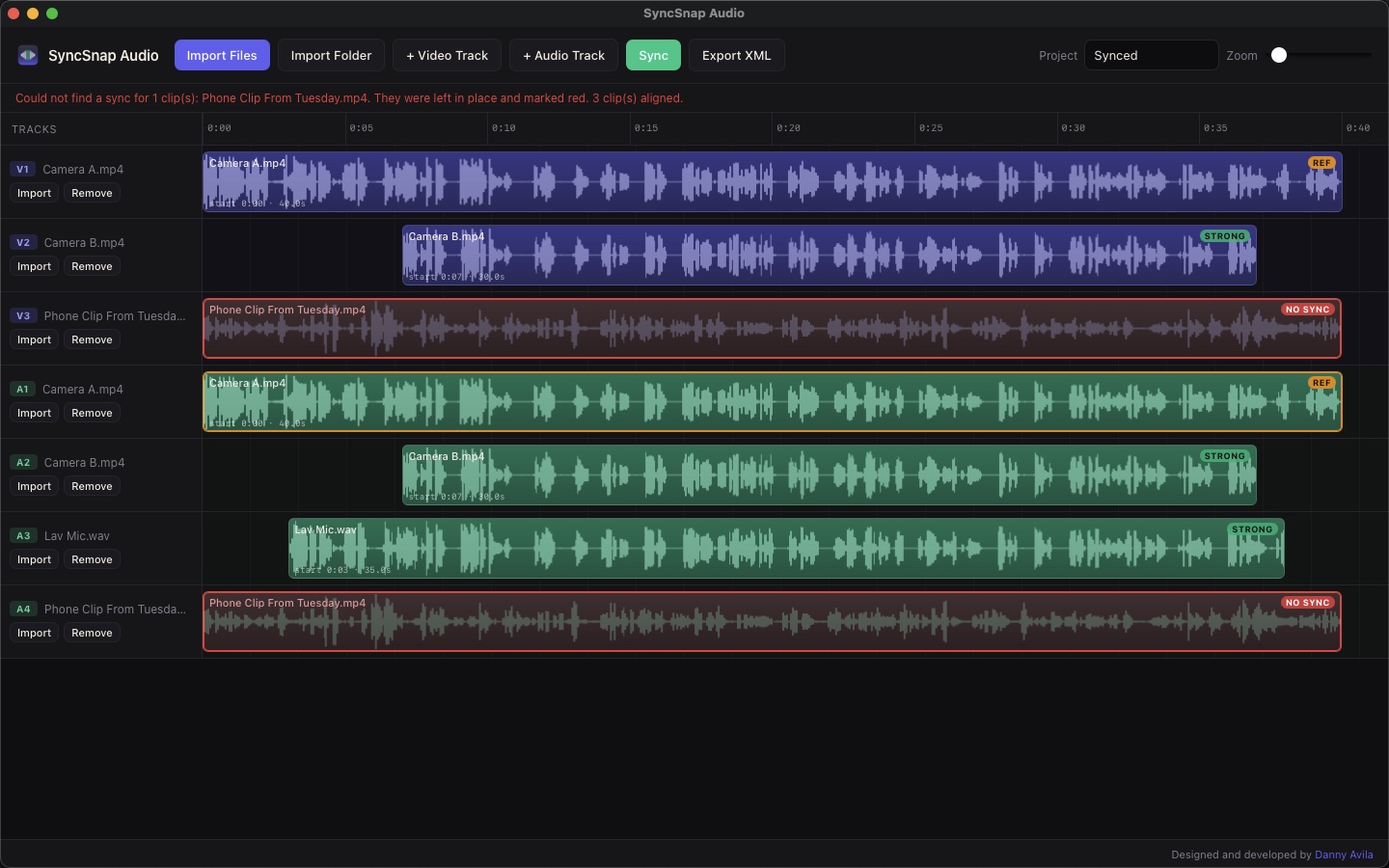
How it works
1. Drag your video and audio files into the window, or
use Import.
2. Click Sync. Waveforms draw as each file loads and the
clips snap into place.
3. Check the timeline. Strong, medium, and no-sync labels
tell you what to trust. Files that don't belong to the shoot stay put
and turn red, so nothing gets lined up by accident.
4. Click Export XML and open the file in your editor.
File types
MOV, MP4, M4V, WAV, AIFF, MP3, M4A, AAC, and CAF. Your original media is never changed.
Common questions
A clip came back red with "no sync." SyncSnap couldn't find matching sound between that clip and the rest. Make sure it was recorded at the same time and has usable audio. A camera with its mic turned off or muffled will not line up.
How do I get it into my editor? Export XML writes a Final Cut Pro 7 XML file. In Premiere Pro use File, Import. In DaVinci Resolve use File, Import Timeline. Final Cut Pro X needs a converter such as 7toX to read that format.
Does it send my footage anywhere? No. Your files are read and processed on your Mac and never leave it. Privacy policy.
Support
Something not working, or have an idea? Email [email protected]. Tell me your macOS version and what files you dropped in, and I'll get back to you.